Installing a CR-Touch on a stock CR-10S
How to wire a CR-Touch to the stock CR-10S mainboard using a DIY adapter cable, patch Marlin 2 firmware, and calibrate the probe offset.
The CR-Touch works on 8-bit boards just fine — the PWM servo signal and digital trigger output are well within ATmega2560 capabilities. The catch with the stock CR-10S is not the processor, it is the connector: Creality’s guides all assume a dedicated 5-pin BLTouch header that the stock V2 board does not have. This article documents the adapter cable that bridges two existing headers, the one-line Marlin patch, and the probe offset workflow.
This guide assumes you are already running custom Marlin 2 on your printer. If you are still on stock firmware, see Building and flashing Marlin 2 on a CR-10S V2 first.
The stock board problem
CR-Touch installation guides almost universally assume a dedicated 5-pin BLTouch header on the mainboard. Creality added that header on newer 32-bit boards (CR-10S Pro, CR-6 SE, etc.), and the official documentation only covers those. The stock CR-10S V2 board — an ATmega2560 — predates that header. The CR-Touch itself does not care about the processor architecture; it needs five signals, and those signals are available on two existing headers the V2 board already exposes: a free D11 servo header (3 pins) and the Z endstop header (2 pins). No adapter board, no cut wires.
Building the adapter cable
The adapter splits the CR-Touch’s 5-pin JST connector into two branches:
- a 3-pin female Dupont plug for the D11 servo header
- a 2-pin JST plug replacing the Z endstop connector
The main risk is reversing the connector: getting the pinout wrong can damage the CR-Touch. Use a multimeter in continuity mode to verify before powering on. The two ground pins (G) on the CR-Touch are shorted internally, which makes them easy to confirm by probing both simultaneously.
The correct wiring for the stock CR-10S is shown below. Note that the GND (white) and VIN (black) wires cross between the CR-Touch connector and the D11 header — pin 1 of the D11 header is VIN, but VIN is the second wire out of the CR-Touch.
| CR-Touch pin | Wire colour | Destination | Signal |
|---|---|---|---|
| G | White | D11 pin 2 | GND |
| V | Black | D11 pin 1 | VIN (+5V) |
| IN | Yellow | D11 pin 3 | Signal |
| G | Red | Z endstop pin 2 | GND |
| OUT | Blue | Z endstop pin 1 | OUT |
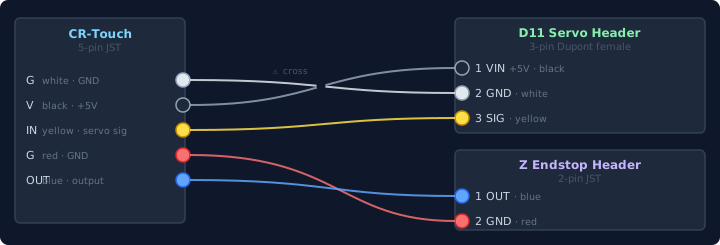
The D11 header reads left to right: black (VIN) — white (GND) — yellow (SIG) when viewed from the plug side. The Z endstop header has blue (OUT) on pin 1 and red (GND) on pin 2.
Verification tip: probe both G pins (white and red) with continuity — they should beep. Also verify VIN against a known +5 V point on the board before powering on, to confirm polarity.
Patching Marlin 2
Marlin’s default RAMPS/Creality pin assignments do not define SERVO0_PIN,
so the BLTouch servo signal floats. Edit
Marlin/src/pins/ramps/pins_RAMPS_CREALITY.h and add inside the existing
#ifdef NUM_SERVOS block:
1 2 3 | |
This maps servo 0 to pin 11, which corresponds to the D11 header used above.
Configuration.h settings
Enable the following defines in Configuration.h:
1 2 3 4 5 6 7 8 9 10 11 12 13 14 15 | |
Understanding the LED status
After flashing and powering up, the CR-Touch runs a self-test sequence. The LEDs report the result:
| LED state | Meaning |
|---|---|
| 🔴 Red only, solid | Power OK; PWM signal not yet received from the board |
| 🔴🔵 Red + Blue (purple) | Self-test passed — probe is ready |
| 🔴 Red blinking | Self-test failed — pin stuck or obstructed |
If the self-test passes but only the red LED lights (no blue), the PWM signal cable is likely loose or miswired. Secure the Dupont connector with a piece of tape; double-check the signal wire on D11 pin 3.
Once the blue LED is on, test deploy and stow from the Marlin Motion › BLTouch menu before starting any print.
Setting the probe offset
NOZZLE_TO_PROBE_OFFSET { X, Y, Z } defines the probe tip position relative
to the nozzle. X and Y depend on your bracket mounting; Z is the trigger height.
Do not try to get Z right at compile time. Leave it at 0 in the build
and use the Probe Offset Wizard (Motion › Probe Offset in the Marlin menu)
to dial it in live using the paper test. The wizard writes the result to EEPROM.
For X/Y, typical values with the standard Creality metal bracket are:
| Axis | Typical value | Notes |
|---|---|---|
| X | −44 to −46 | Measure from your own bracket; −44 is a common starting point |
| Y | −9 | Generally consistent across mounting positions |
| Z | 0 (compile) | Set live via Probe Offset Wizard, saved to EEPROM |
1 | |
If first-layer results drift laterally, measure the actual nozzle-to-probe distance with calipers and adjust X/Y accordingly.
Babystepping and live Z adjustment
Babystepping lets you nudge the Z offset mid-print without stopping. With
BABYSTEP_ZPROBE_OFFSET enabled, the adjustment is persistent: it updates the
stored probe offset in EEPROM, not just a temporary shift. Recommended
workflow:
- Start a print.
- Watch the first layer; use the babystepping menu to correct if needed.
- The corrected value is saved automatically.
For a visual walkthrough combining the Probe Offset Wizard and babystepping, see this Z-offset calibration guide.
Bed levelling visualisation
If you use OctoPrint, the Bed Level Visualizer plugin renders the mesh as a 3D heatmap. It is useful for spotting physical bed problems that no Z offset correction can fix, such as a warped or unlevel frame.
Four years later (2026)
Once calibrated, the CR-Touch is one of those upgrades that becomes invisible — the first layer just works. The adapter cable is the only non-standard step; once you’re past the connector problem, it’s standard Marlin configuration. Four years in, I have not had to recalibrate it once.